If you use WordPress, you’ve probably seen news about a plugin vulnerability being discovered and patched. It happens more often than most website owners realize. Sometimes it’s a small issue, but a critical plugin vulnerability can leave your website open to malware, unwanted access, or other security problems if you don’t act quickly.
The good news is that developers usually release fixes fast. The problem is that many websites stay vulnerable because updates are delayed or missed. In some cases, attackers start targeting websites before owners even know there is a problem.
That’s why it’s important to know what steps to take after a vulnerability is patched. In this guide, we’ll walk through what it means, how to check if your website is affected, and what you can do to keep your WordPress site secure.
What Is a Critical WordPress Plugin Vulnerability?
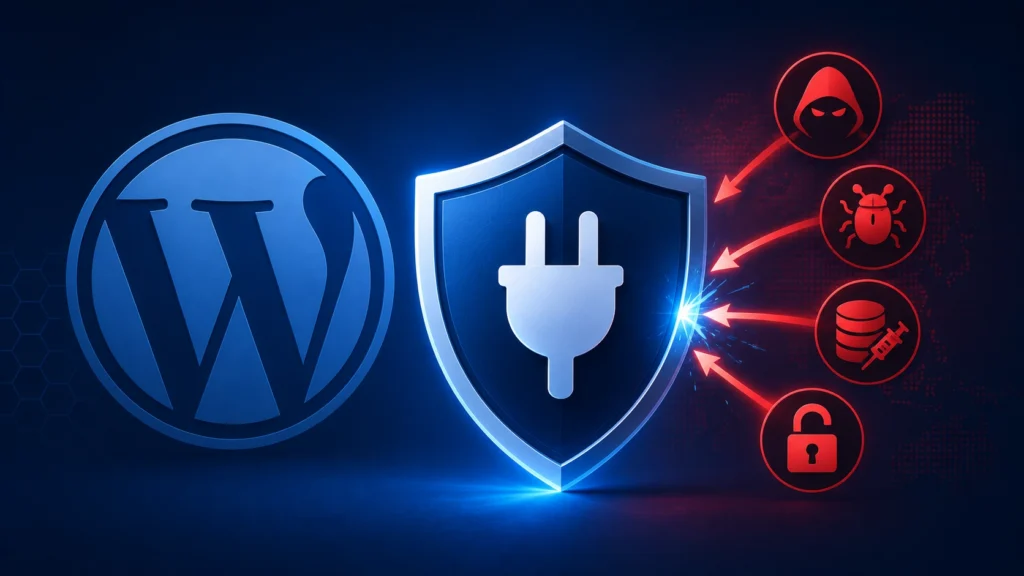
A critical WordPress plugin vulnerability is a serious security problem found in a plugin. Hackers may use it to access your website, add harmful code, create fake admin accounts, or take control of your site.
Some plugin issues are small and have little impact. But critical vulnerabilities need quick action because they can put your website at immediate risk.
However, critical vulnerabilities are considered dangerous because they often require immediate action and can lead to:
- Website takeovers
- Malware infections
- SEO spam attacks
- Redirect hacks
- Data leaks
- Unauthorized administrator access
- Website defacement
The severity usually depends on factors like:
- How easy is the exploit to execute
- Whether authentication is required
- Potential impact on your website
- Number of affected installations
The good news is that developers usually release a fix once a problem is found. Updating the plugin quickly helps lower the risk and keeps your website protected.
Why Plugin Vulnerabilities Are a Major WordPress Security Risk
WordPress powers over 42% of all websites on the internet and nearly 60% of websites using a content management system (CMS). This makes it the most popular website platform in the world. Plugins are one of the main reasons for its popularity because they make it easy to add new features and customize websites.
However, plugins are also one of the most common attack vectors.
A single vulnerable plugin can expose your entire website, even if WordPress core itself is fully updated.
Common examples of dangerous WordPress plugin vulnerabilities include:
- Remote Code Execution (RCE) – attackers can run malicious code on your server
- SQL Injection – attackers manipulate your database
- Cross-Site Scripting (XSS) – malicious scripts injected into website pages
- Privilege Escalation – attackers gain admin-level access
- Authentication Bypass – login protections are skipped
- Arbitrary File Upload – malicious files or backdoors added to your site
Because many attacks are automated, vulnerable websites may start receiving exploit attempts within hours of public disclosure.
This is one reason proactive protection matters. A properly configured WordPress security setup can help block malicious requests before they exploit vulnerable plugin code.
For example, a web application firewall (WAF) can inspect incoming traffic and stop known attack patterns before they execute. VMP Security includes 280+ real-time firewall rules, pre-WordPress execution mode, malware scanning, vulnerability monitoring, and brute force protection, helping website owners reduce exposure to plugin-based attacks while keeping all scanning on their own server.
Has the Vulnerability Been Patched?
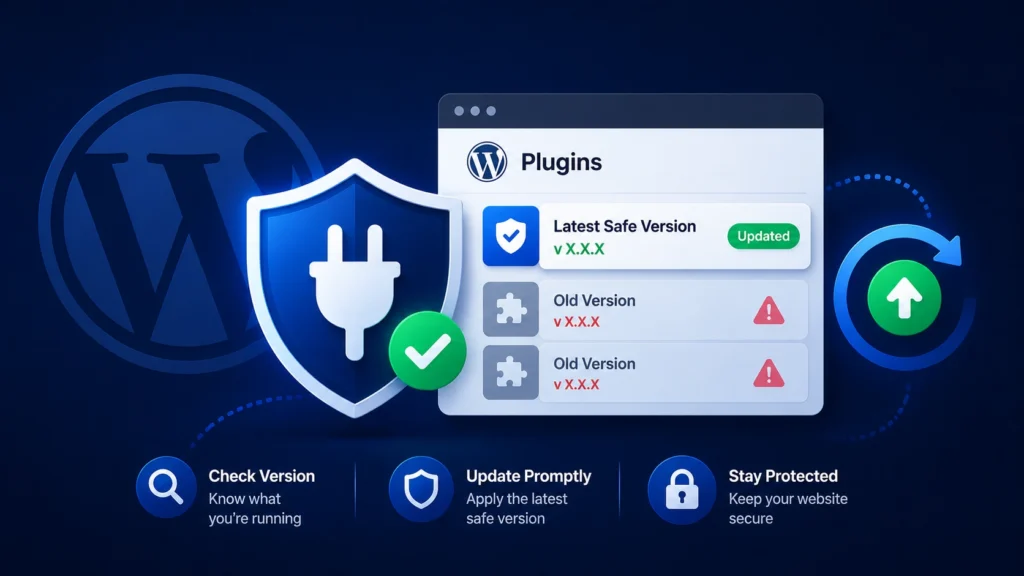
Yes, the vulnerability has been patched. If you are using the affected plugin, make sure you update to the latest safe version as soon as possible. Delaying updates can leave your website open to attacks.
Safe Plugin Version
Before updating anything, take a moment to confirm the plugin details. This helps you understand whether your website is affected and which version is safe to use.
Here are the key things to check:
- Fixed Version: The version where the security issue was fixed
- Release Date: The date the security update was released
- Official Changelog: Details shared by the plugin developer about the fix
You can usually find this information on the plugin’s official changelog page or the WordPress plugin repository. Checking these details helps you update with confidence and avoid running an unsafe version.
How to Check if You’re Running a Vulnerable Version
If a plugin vulnerability has been reported, the first thing you should do is check whether your website is using the affected version. This only takes a few minutes and helps you understand if your site is at risk.
Follow these quick steps:
- Log in to your WordPress Dashboard
- Go to Plugins → Installed Plugins
- Find the affected plugin
- Check the current version number
- Update the plugin immediately if you are using an older version
If your plugin is already updated to the latest safe version, that’s a good sign. Still, it’s worth checking your website for unusual activity to make sure everything is secure.
What Website Owners Should Do Immediately
If a critical plugin vulnerability affects your website, acting quickly matters. Updating the plugin is important, but it should not be the only step. Here are the most important things you should do to protect your website.
1. Update the Plugin Immediately
The first step is to update the affected plugin to the latest safe version. Security patches are released to fix known issues, so delaying updates can leave your website exposed.
Before updating, make sure to create a full website backup. This gives you a restore point if anything breaks during the update process.
Once updated, take a few minutes to test your website. Check important pages, forms, checkout flows, and plugin features to make sure everything is working properly.
2. Scan Your Website for Signs of Compromise
Updating the plugin does not always mean the problem is over. If your website was running a vulnerable version, attackers may have already tried to access it before the patch was installed.
Check your website for warning signs such as:
- Unknown admin users
- Changed or suspicious files
- Unexpected redirects
- Strange JavaScript code
- SEO spam pages in search results
- Plugins you did not install
A quick manual check helps, but hidden malware is easy to miss. Running a full security scan can help detect suspicious changes, vulnerable plugins, file modifications, and malicious code before they create bigger problems.
VMP Security includes 9 specialized malware scanners, vulnerability monitoring, file change detection, and malware signature scanning, all running directly on your server for better visibility and privacy.
3. Enable a Firewall Before the Next Attack
Updating plugins is reactive. It fixes a problem after it becomes known. A firewall helps protect your website from attacks that can cause damage.
Hackers often use automated bots to scan websites for newly disclosed vulnerabilities. Once a plugin issue becomes public, attacks can start very quickly. Some threats even appear before an official patch is available.
A WordPress firewall helps block harmful requests before they reach vulnerable plugin code. VMP Security WordPress plugin includes 280+ firewall rules, real-time rule updates, pre-WordPress execution mode, andzero-day threat protection to help stop attacks early.
4. Enable Login Protection
After a vulnerability becomes public, attackers often try other ways to access websites. This may include brute force attacks, password guessing, or attempts to take over admin accounts.
Adding stronger login protection helps reduce these risks.
A good place to start is enabling two-factor authentication (2FA), limiting login attempts, and blocking suspicious login activity.
VMP Security includes built-in 2FA, brute force protection, leaked password detection, and rate limiting to help secure WordPress logins and reduce the risk of account takeovers.
How to Tell if Your WordPress Site Was Already Compromised
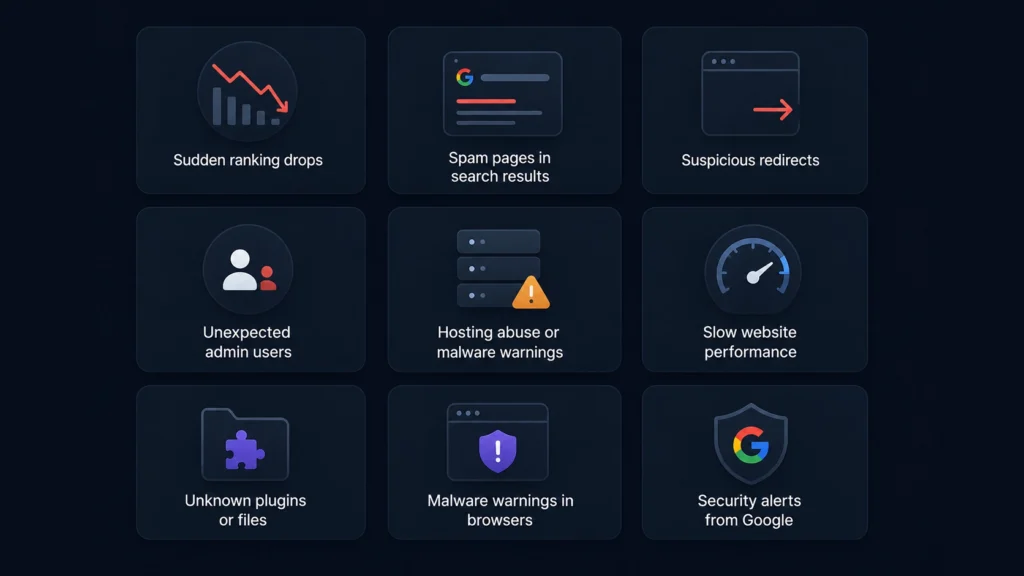
Even after a vulnerability is patched, WordPress security should still be a priority. It’s important to check whether your website was affected before the update, as attackers can sometimes gain access quietly and leave behind hidden issues.
Here are some common warning signs that your WordPress site may have been compromised:
- Sudden ranking drops in search results
- Spam pages indexed in Google that you did not create
- Suspicious redirects are sending visitors to unknown websites
- Unexpected admin users in your WordPress dashboard
- Hosting abuse or malware warnings from your hosting provider
- Slow website performance without a clear reason
- Unknown plugins or files are installed on your website
- Malware warnings in browsers or security alerts from Google
If you notice one or more of these signs, scan your website immediately and review recent changes to limit further damage.
How do I know if my WordPress site was hacked?
Your WordPress site may be hacked if you notice unusual changes like spam pages, redirects, unknown admin users, slow performance, malware warnings, or sudden ranking drops. You may also find plugins or files you didn’t install. Running a security scan can help confirm if your site is compromised.
Why Plugin Vulnerabilities Are a Bigger Problem in 2026
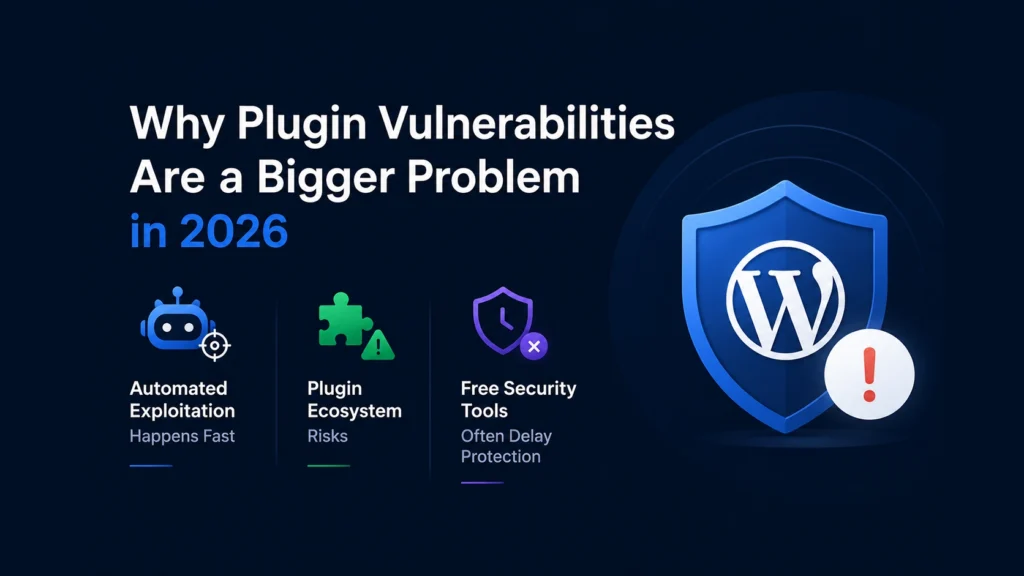
WordPress security risks are growing every year. As plugins become more powerful and websites rely on more third-party tools, vulnerabilities are becoming harder to ignore. In 2026, website owners need to act faster and stay more proactive than ever before.
Automated Exploitation Happens Fast
Once a plugin vulnerability becomes public, attackers do not wait. Many hackers use automated bots that scan thousands of websites looking for outdated plugin versions.
In some cases, websites start getting attacked within hours of a vulnerability being disclosed. This means delaying updates, even for a short time, can increase the risk of compromise.
Plugin Ecosystem Risks
Plugins are one of the biggest strengths of WordPress, but they can also create security challenges.
Some common risks include:
- Abandoned plugins that no longer receive updates
- Delayed plugin updates from website owners
- Vulnerable dependencies inside plugins that introduce hidden risks
Even trusted plugins can become problematic if security issues are not fixed quickly or if updates are ignored.
Free Security Tools Often Delay Protection
Not all WordPress security tools offer protection at the same speed. Some security plugins delay important firewall rules or malware signatures for free users.
During an active vulnerability, even a small delay can leave websites exposed to attacks. VMP Security provides real-time threat intelligence, firewall rules, and malware signatures to help protect websites without delayed updates. This helps website owners respond faster to new threats and reduce the risk of attacks.
Best Practices to Prevent Future Plugin Exploits
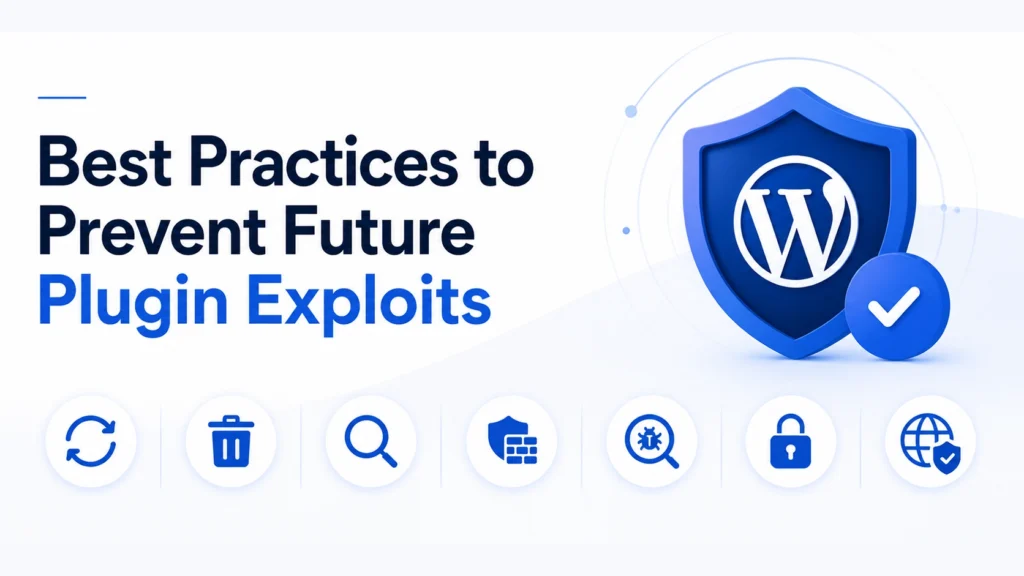
While you cannot prevent new vulnerabilities from being discovered, you can reduce the likelihood that your website will be affected. A few simple security habits can go a long way in protecting your WordPress site from future plugin attacks.
Keep Plugins Updated
Always update plugins as soon as security fixes are released. Outdated plugins are one of the most common ways attackers gain access to WordPress websites.
If possible, enable automatic updates for trusted plugins or check for updates regularly.
Remove Unused Plugins
Inactive or unused plugins can still become a security risk. If you are not using a plugin, it is better to remove it completely instead of leaving it installed.
Fewer plugins also mean fewer chances for vulnerabilities.
Monitor Plugin Vulnerabilities
Not every plugin issue gets noticed immediately. Keeping an eye on plugin vulnerabilities helps you act quickly before problems become serious.
Use tools that notify you about known plugin and theme security issues so you can update affected software faster.
Use a WordPress Firewall
A firewall adds an extra layer of protection to your website. It can block harmful traffic, suspicious requests, and common attack attempts before they reach vulnerable plugin code.
This becomes especially important when attackers begin targeting newly discovered vulnerabilities.
Scan for Malware Regularly
Regular security scans help find hidden malware, suspicious files, or changes that should not be there.
Even if your website looks normal, hidden threats can still exist in the background. Running regular scans helps catch problems early.
Enable Two-Factor Authentication
Passwords alone are often not enough. Adding two-factor authentication (2FA) makes it harder for attackers to access your website, even if login credentials are stolen.
This extra step can greatly improve login security.
Block Malicious Countries & IPs
If your website receives repeated attacks from certain locations or suspicious IP addresses, blocking them can help reduce unwanted traffic and login attempts.
Country and IP blocking can also lower the risk of spam bots and automated attacks.
To make website security easier, the VMP Security includes plugin and theme vulnerability monitoring, scheduled security scans, IP blocking, country blocking, intrusion alerts, firewall protection, and malware detection to help reduce future risks and keep WordPress websites secure.
Free vs Premium Protection: Which Security Level Do You Need?
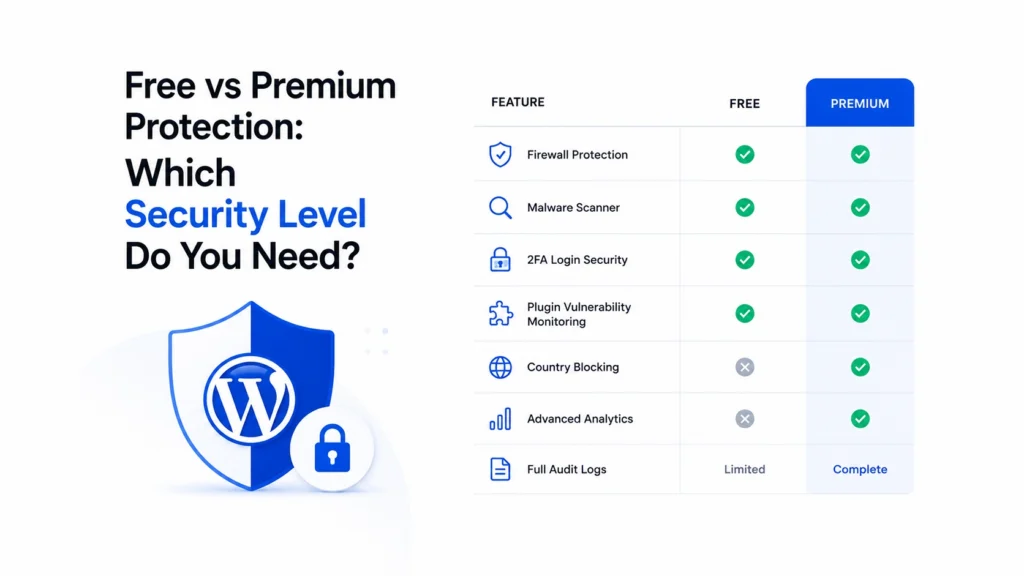
The right security plan depends on your website’s needs. If you are running a personal blog or a small website, basic protection may be enough to get started. But for business websites, online stores, or websites handling important customer data, advanced security features can offer stronger protection and better visibility.
Here’s a quick comparison to help you choose the right level of protection:
| Feature | Free | Premium |
|---|---|---|
| Firewall Protection | ✅ | ✅ |
| Malware Scanner | ✅ | ✅ |
| 2FA Login Security | ✅ | ✅ |
| Plugin Vulnerability Monitoring | ✅ | ✅ |
| Country Blocking | ❌ | ✅ |
| Advanced Analytics | ❌ | ✅ |
| Full Audit Logs | Limited | Complete |
The Free plan is a good starting point for basic WordPress security and includes important features like firewall protection, malware scanning, and login security. The Premium plan adds more advanced controls, deeper monitoring, and extra protection for growing or high-value websites.
VMP Security offers a free first-year plan to help website owners get started, with the option to upgrade to Premium for more advanced security features and long-term protection.
Final Thoughts
A critical WordPress plugin vulnerability can feel alarming, but acting quickly makes a big difference. Updating the affected plugin, checking your website for unusual activity, and strengthening your security can help reduce the risk before problems grow.
The most important thing is not to wait. Attackers often move fast, especially after vulnerabilities become public. Staying updated and taking a few preventive steps can help keep your website protected.
WordPress security is not about reacting only after something goes wrong. A proactive approach with regular updates, malware scans, firewall protection, and stronger login security can help you stay one step ahead and keep your website safe over time.